

Sakai LMS Integration
Complete guide for integrating Qriib Virtual Classrooms with Sakai LMS via LTI 1.3 / LTI Advantage — covering External Tools registration, AGS/NRPS/Deep Linking setup, security flow, environment configuration, and troubleshooting.
Sakai LMS Integration
Integrate Qriib Virtual Classrooms into Sakai LMS using the LTI 1.3 / LTI Advantage protocol. This guide is written for system administrators, DevOps engineers, and developers responsible for registering the tool, wiring up grade/roster services, and operating the integration in production.
1. Overview & Prerequisites
LTI 1.3 replaces the old OAuth 1.0a launch signing used by LTI 1.1 with an OpenID Connect (OIDC) third-party initiated login flow and signed JWTs. Sakai acts as the Platform, and Qriib acts as the Tool. Once registered, the integration enables:
- Single sign-on (SSO) launches from any Sakai site.
- Deep Linking — instructors pick and embed a Qriib activity directly from Lessons/Resources.
- Assignment and Grade Services (AGS) - pending, not activated: ordinary meeting end does not publish attendance grades.
- Names and Role Provisioning Services (NRPS) — course roster and roles sync automatically.
Moodle and Canvas are the active LTI integration targets. This Sakai setup reference is not evidence of live Sakai acceptance. Shared backend Phase 2 safety rules still apply: verified target-organization Control Panel owners/admins only for management, authenticated two-POST recording consumption, coordinated frontend/backend rollout, conservative force-disable reconciliation, verified EN/AR launch locale/manual per-session selection, and independent workspace logout. No bearer URLs, arbitrary-origin bearer forwarding, automatic grading, or Moodle logout synchronization is introduced. Soon/disabled features remain pending; no Phase 3 activation is implied.
Prerequisites
| Requirement | Details |
|---|---|
| Sakai version | Sakai 21.x or later is recommended for full LTI 1.3 Advantage support (AGS + NRPS + Deep Linking 2.0). Sakai 12–20 support basic LTI 1.3 launches only — verify AGS/NRPS availability with your Sakai maintainer before relying on them. |
| HTTPS / SSL | Both Sakai and the Qriib tool endpoints must be served over HTTPS with a valid, trusted SSL certificate. LTI 1.3 launches will fail silently or be blocked by browsers if either side is not on HTTPS (mixed content, cookie, and CORS restrictions all apply). |
| Admin access | An account with access to Sakai's Administration Workspace (Sakai system administrator role). |
| Qriib credentials | A Qriib DevKit Portal account to generate and register outbound/inbound LTI credentials for your environment. |
| Clock sync | Server clocks on both Sakai and the Qriib tool must be NTP-synced — JWT iat/exp validation fails under clock drift greater than a few minutes. |
| Third-party cookies | Since Sakai launches tools inside an iframe by default, the browser must allow the OIDC flow to complete (see Security & Authentication Flow). |
2. Sakai LTI 1.3 Tool Registration & Deployment
Sakai registers external tools through Administration Workspace → External Tools. This is a two-way handshake: you give Sakai the Qriib tool's endpoints, save, and Sakai then generates platform credentials you register back into Qriib.
Step 1: Get the LTI Tool Credentials
Log in to the [Your App Name] Developer Portal and copy the three URLs generated for your environment:
| Field | Dynamic Endpoint URL | Action |
|---|---|---|
| Target Link URI (Launch URL) | https://vcloud-dev.dragonteam.dev/api/v4/lti/launch | |
| OIDC Initiation URL | https://vcloud-dev.dragonteam.dev/api/v4/lti/login | |
| Public Keyset URL (JWKS) | https://vcloud-dev.dragonteam.dev/api/v4/lti/jwks |
Step 2: Locate and Edit the Tool in Sakai
- Log in to Sakai with an admin account.
- Navigate to Administration Workspace → External Tools.
- Search for the tool (or click Register New Tool if it doesn't exist yet), then click Edit to open it for editing.

Step 3: Fill in the Tool Configuration
| Sakai Field | Value |
|---|---|
| Tool Title | Qriib Virtual Classrooms |
| Tool Description | Live virtual classrooms with SSO and entitlement-gated roster access. |
| LTI Version | LTI 1.3 |
| LTI 1.3 Tool Redirect Endpoint(s) / Launch URL | https://vcloud-dev.dragonteam.dev/api/v4/lti/launch |
| LTI 1.3 Tool OpenID Connect / Initiation Endpoint | https://vcloud-dev.dragonteam.dev/api/v4/lti/login |
| LTI 1.3 Tool Keyset / JWK URL | https://vcloud-dev.dragonteam.dev/api/v4/lti/jwks |
If your Sakai instance offers only a single Redirect URI(s) field, enter the Launch URL above — it doubles as the redirect target after OIDC authentication succeeds.
Step 4: Configure Privacy & Services
These settings control what data Sakai may share. Roster access also requires the corresponding Qriib entitlement; service permissions alone do not activate attendance or grade passback:
Privacy Settings
- Enable Send User Names to External Tool.
- Enable Send Email Addresses to External Tool.
Services
- Allow External Tool to return grades is not required for current Qriib meeting workflows; AGS remains pending.
- Enable Provide Roster to External Tool — required for NRPS.
Step 5: Save and Collect Platform Credentials
Click Save. Sakai will generate the platform-side credentials at the bottom of the same page — copy these into the Qriib DevKit Portal's LMS Integration form:
| Sakai-Generated Field | Description | Registered Into Qriib As |
|---|---|---|
Platform Issuer (iss) | Your Sakai instance's base URL, e.g. https://sakai.example.edu | Platform Issuer |
| Client ID | Unique ID Sakai assigned to this tool registration | Client ID |
| Deployment ID | Identifies this specific tool deployment (usually 1, or an incrementing integer per registration) | Deployment ID |
| Public Keyset URL | https://sakai.example.edu/imsblis/lti13/keyset | Public Keyset URL |
| Access Token URL | https://sakai.example.edu/imsblis/lti13/token/{id} | Access Token URL |
| Authentication Request URL | https://sakai.example.edu/imsoidc/lti13/oidc_auth | Authentication Request URL |
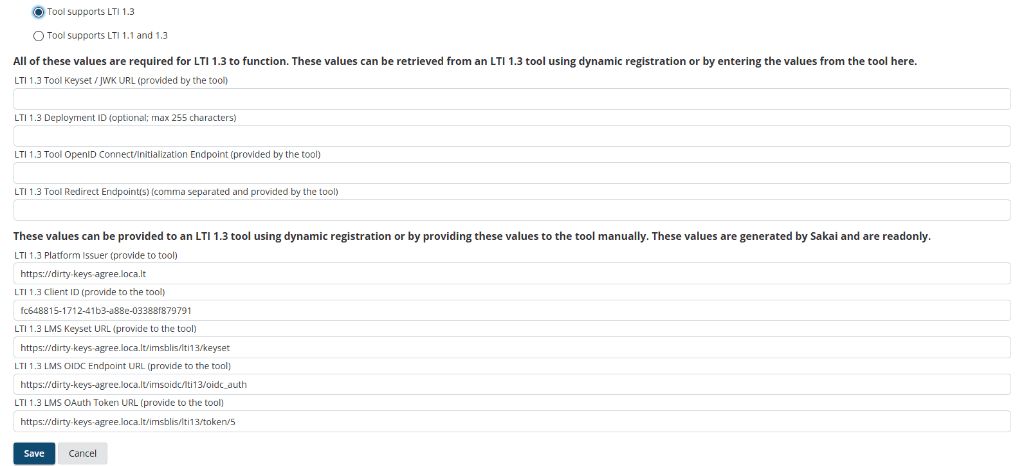
Paste these into the Qriib DevKit Portal's Register New LMS form:
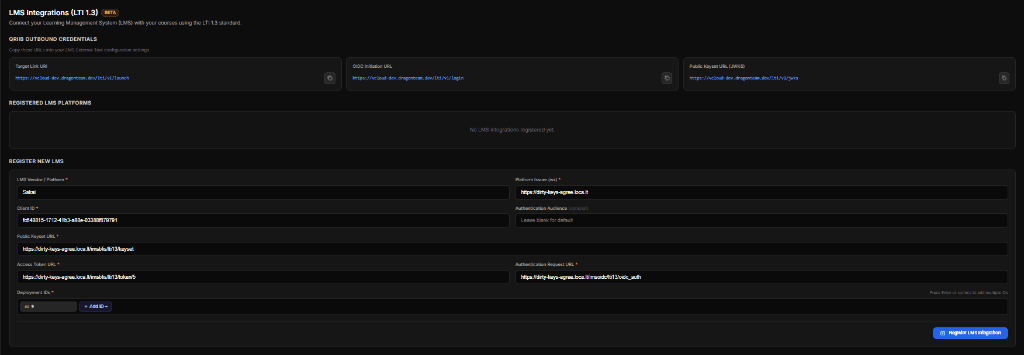
Click Register LMS Integration. The tool now appears in Sakai's External Tools table as an active LTI 1.3 tool:

3. LTI Advantage Services Setup (Sakai-Specific)
Deep Linking (LTI DL)
Deep Linking lets an instructor open a content-selection UI inside Qriib (from Sakai Lessons or Resources) and have the selected item embedded back into the course automatically, instead of manually configuring a placement.
- Deep Linking is negotiated automatically once the tool registration in Section 2 is saved with LTI 1.3 enabled — no extra endpoint is needed beyond the shared Launch URL.
- In Sakai, Deep Linking is triggered from Lessons → Add Content → Add Learning App, or from Resources when adding an external tool item.
- Qriib returns a Deep Linking Response JWT (
ltiResourceLinkorcontentItems) that Sakai uses to create the placement — verify in your tool logs that the response is signed with the same key referenced in your JWKS.
Assignment and Grade Services (AGS)
AGS is an LTI protocol service, but its reusable backend library is not an activated Qriib attendance-grade workflow. Phase 2 removed ordinary end-meeting grade publication, the forced prototype grade capability, and the production debug_ags route. Do not expect scores or automatic line-item creation after a session, and do not enable grade permissions as a workaround. Attendance/grade workflows remain pending separately approved activation.
Names and Role Provisioning Services (NRPS)
NRPS lets Qriib pull the enrolled roster (names, emails, LTI roles) for a course context, powering features like pre-populated attendee lists and role-based UI (instructor vs. student controls).
- Confirm Provide Roster to External Tool is enabled on the tool registration.
- Sakai exposes the roster at the
namesroleserviceURL returned in the launch'shttps://purl.imsglobal.org/spec/lti-nrps/claim/namesroleserviceclaim — no separate registration step is required beyond enabling the service. - Roles are returned as LTI standard role URNs (e.g.
http://purl.imsglobal.org/vocab/lis/v2/membership#Instructor); map these on the Qriib side rather than relying on Sakai-specific role names.
4. Sakai Lesson Tool & Course Placement
Once registered by an admin, instructors add the tool to their own course sites — no further admin involvement is needed per-course.
Optional: Creating a Test Course Site
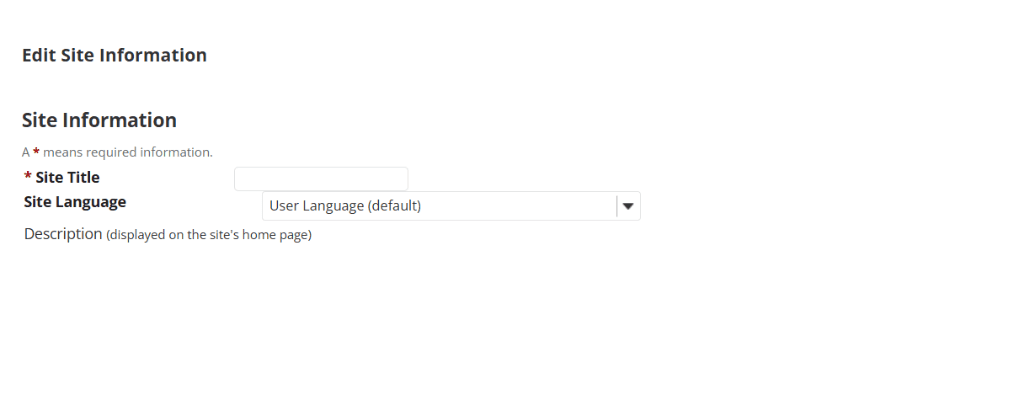
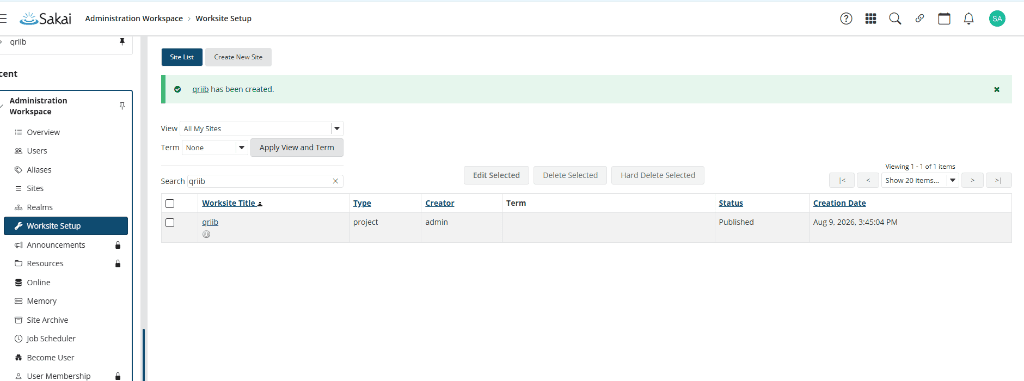
If you don't already have a course site to test against, create one from Administration Workspace → Worksite Setup → Create New Site, choose the Project Site (or Course Site) type, and give it a title on the Edit Site Information screen:
Once created, the site appears in the worksite list with a confirmation banner:
Adding the Tool via Lessons
- Open the course site and go to Lessons in the site's tool menu (or create one via Site Info → Manage Tools if not yet added to the site).
- Click Add Content + in the page toolbar.
- Select Add Learning App from the dropdown.
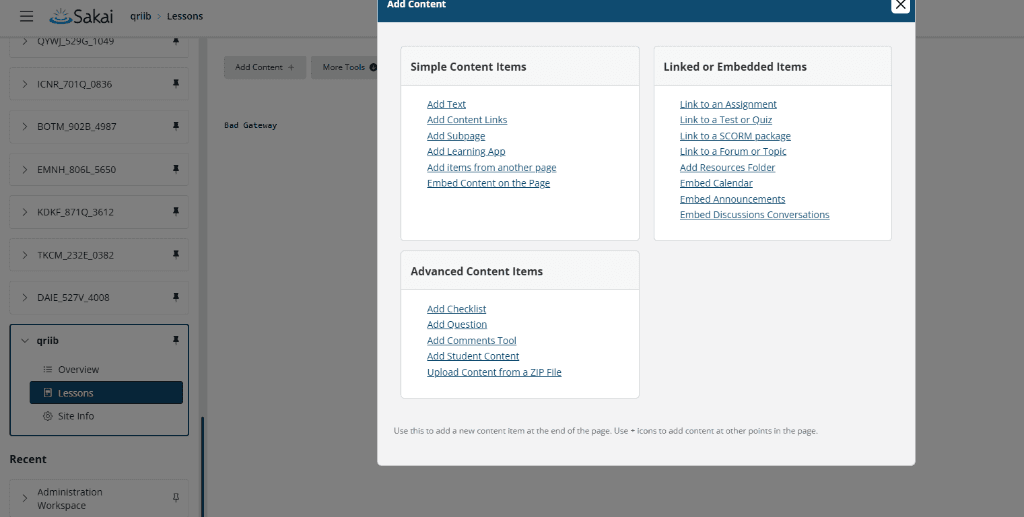
- Choose Qriib Virtual Classrooms from the list of registered external tools.
- Choose a target placement:
- Embed in page — the tool renders inline within the Lessons page (best for launch-and-join flows).
- New Window — opens the tool in a separate browser tab (recommended if the session uses camera/microphone permissions or screen sharing, which can be restricted inside nested iframes).
- Save the page. Students launch the tool by clicking the item on the Lessons page.
Adding the Tool via External Tools Menu
Alternatively, add the tool directly as a top-level site tool:
- Go to Site Info → Manage Tools.
- Select the registered Qriib Virtual Classrooms tool from the external tools list and add it to the site.
- Save — the tool now appears in the site's left-hand tool menu for all site members.
5. Security & Authentication Flow
OIDC Third-Party Initiated Login
Every launch follows the standard LTI 1.3 / OIDC flow between Sakai (Platform) and Qriib (Tool):
- Initiation — Sakai redirects the browser to the Qriib OIDC Initiation Endpoint with
iss,login_hint, andtarget_link_uri. - Auth request — Qriib redirects the browser back to Sakai's Authentication Request URL (
/imsoidc/lti13/oidc_auth) with a generatedstateandnonce. - Authentication — Sakai authenticates the request (the user is already logged in) and redirects to the tool's Launch URL with a signed id_token (JWT) and the original
state. - Launch — Qriib validates the
statematches what it issued, validates the JWT (see below), consumes thenonceexactly once, and renders the session.
JWT Validation Checklist
Qriib validates every id_token against:
- Signature — verified using the public key fetched from Sakai's JWKS (
/imsblis/lti13/keyset), matched by thekidin the JWT header. - Issuer (
iss) — must exactly match the registered Platform Issuer. - Audience (
aud) — must match the Client ID issued for this registration. - Nonce — must be unique and unused; replayed nonces are rejected.
- Expiry (
exp) / issued-at (iat) — rejected if expired or issued outside an acceptable clock-skew window (requires NTP-synced servers). - Deployment ID claim (
https://purl.imsglobal.org/spec/lti/claim/deployment_id) — must match the registered Deployment ID exactly; mismatches are the most common cause of rejected launches after a Sakai site is cloned or the tool is re-registered.
Key Rotation Guidance
- Rotate the Qriib tool's signing keys periodically. Publish both the old and new public key in the JWKS response during a rotation window so in-flight tokens signed with the old key still validate.
- Sakai caches the JWKS response for a period of time — after rotating keys, allow for cache expiry (or restart the relevant Sakai service) before retiring the old key entirely.
- Never remove a key from the JWKS the moment you stop signing with it — keep it published until you are confident no cached/queued token still references its
kid.
6. Environment Configuration Reference
Example configuration for the LTI tool's backend/frontend. Adjust variable names to match your framework's convention; values below correspond to the fields collected in Section 2, Step 5.
# --- Sakai Platform (per-tenant, one set per Sakai instance registered) ---
SAKAI_ISSUER=https://sakai.example.edu
SAKAI_CLIENT_ID=<client-id-from-sakai-tool-registration>
SAKAI_DEPLOYMENT_ID=<deployment-id-from-sakai-tool-registration>

# --- Sakai Endpoints ---
SAKAI_KEYSET_URL=https://sakai.example.edu/imsblis/lti13/keyset
SAKAI_AUTH_TOKEN_URL=https://sakai.example.edu/imsblis/lti13/token/<id>
SAKAI_AUTH_LOGIN_URL=https://sakai.example.edu/imsoidc/lti13/oidc_auth

# --- Your LTI Tool's own endpoints (copy the dynamic values shown in Section 2, Step 1) ---
LTI_TOOL_LAUNCH_URL=<launch-url-from-your-lti-tool>
LTI_TOOL_LOGIN_URL=<oidc-initiation-url-from-your-lti-tool>
LTI_TOOL_JWKS_URL=<jwks-url-from-your-lti-tool>

# --- Tool Signing Keys ---
LTI_TOOL_PRIVATE_KEY_PATH=/etc/<your-app>/keys/lti-signing-key.pem
LTI_TOOL_KID=<key-id-matching-jwks-entry>
Store one
SAKAI_ISSUER/SAKAI_CLIENT_ID/SAKAI_DEPLOYMENT_IDtriple per Sakai tenant you integrate with — multi-tenant deployments must key their credential lookup off all three values together, sinceclient_idalone is not guaranteed globally unique across platforms.
7. Troubleshooting & Common Sakai Edge Cases
| Symptom | Likely Cause | Resolution |
|---|---|---|
invalid_state / launch loops back to a blank page | Browser blocked third-party cookies during the OIDC redirect, common when Sakai embeds the tool in an iframe (Lessons "Embed in page"). | Use New Window placement, or ensure the tool sets SameSite=None; Secure on its session/state cookies. |
JWT signature validation failed | Sakai fetched a stale JWKS, or the kid in the token doesn't match any key currently published. | Confirm the JWKS URL is publicly reachable over HTTPS and returns the active key; check for a recent, incomplete key rotation. |
Missing Deployment ID / deployment_id not found | The tool registration was re-created (new Deployment ID) without updating the value stored in the Qriib tool's tenant config, or a site was duplicated from a template and inherited a placement whose deployment doesn't match. | Re-sync the Deployment ID shown in Sakai's External Tools page with the value stored for that tenant on the Qriib side. |
| Roster missing | Roster service unavailable or Qriib entitlement/capability absent. | Check Provide Roster to External Tool, privacy settings, and backend capabilities. Enabling a service does not override entitlement checks. |
| No attendance grades after meeting end | Automatic grade publication is not activated. | Expected in Phase 2; changing Sakai grade permissions does not enable it. |
| Names/emails show as blank in the tool | Send User Names / Send Email Addresses to External Tool privacy settings are disabled. | Enable both under the tool's Privacy Settings. |
| Session drops immediately after launch in Safari/iOS | Intelligent Tracking Prevention blocks the cross-site cookie set during the OIDC round trip. | Ensure the tool's session cookie uses SameSite=None; Secure, and prefer New Window placement for camera/microphone-dependent sessions regardless of browser. |
Clock-skew related exp/iat rejections | Sakai or the tool server's system clock has drifted. | Verify NTP is enabled and synced on both hosts. |
Debugging LTI Launches in Sakai
- Sakai Admin Logs: check
sakai.log(or your configured log appender) for entries underorg.sakaiproject.lti13andorg.sakaiproject.basiclti— these log OIDC state/nonce mismatches and JWT validation failures with the specific claim that failed. - Raise log verbosity: temporarily set the
org.sakaiproject.lti13logger toDEBUGvia Sakai's admin logging console (Administration Workspace → Logging) to capture the full outgoing/incoming JWT payloads during a test launch. - Inspect the launch payload: use browser devtools' Network tab on the redirect to the tool's Launch URL — the
id_tokenis a standard JWT and can be decoded (without verifying the signature) at any JWT debugger to confirm claims likedeployment_id,roles, and the AGS/NRPS service URLs are present as expected. - Test in isolation: reproduce the launch with a minimal LTI 1.3 test tool (e.g. the IMS Global reference implementation) against the same Sakai registration to confirm whether an issue is Sakai-side or Qriib-side before escalating.